









QuickBooks Read-Only Access: What's Possible and What Isn't
A guide to QuickBooks Online user roles, permissions, and the accounting API scope, and what read-only or view-only access looks like in practice.
On this page +
See it live
Ask Kipper about your QuickBooks data.
Invoices, payments, vendor bills and purchase orders.
Schedule free onboardingNo signup. Runs in your browser.
If you have gone looking for a QuickBooks Online read-only user, you have probably found the answer is more nuanced than a single checkbox. QuickBooks Online has a real permissions model, and it does well at what it was designed for: keeping a bookkeeper out of payroll, or a salesperson out of vendor bills. What it does not offer is a universal “view only” switch that works everywhere, including for the apps you connect.
This guide covers what QuickBooks Online user roles actually restrict, why the API exposes a single broad accounting scope, and what your options are when someone needs to see one narrow slice of data and nothing else.
What QuickBooks Online user roles actually restrict
QuickBooks Online user permissions are organized around user types, and the type you pick determines nearly everything about what that person can reach.
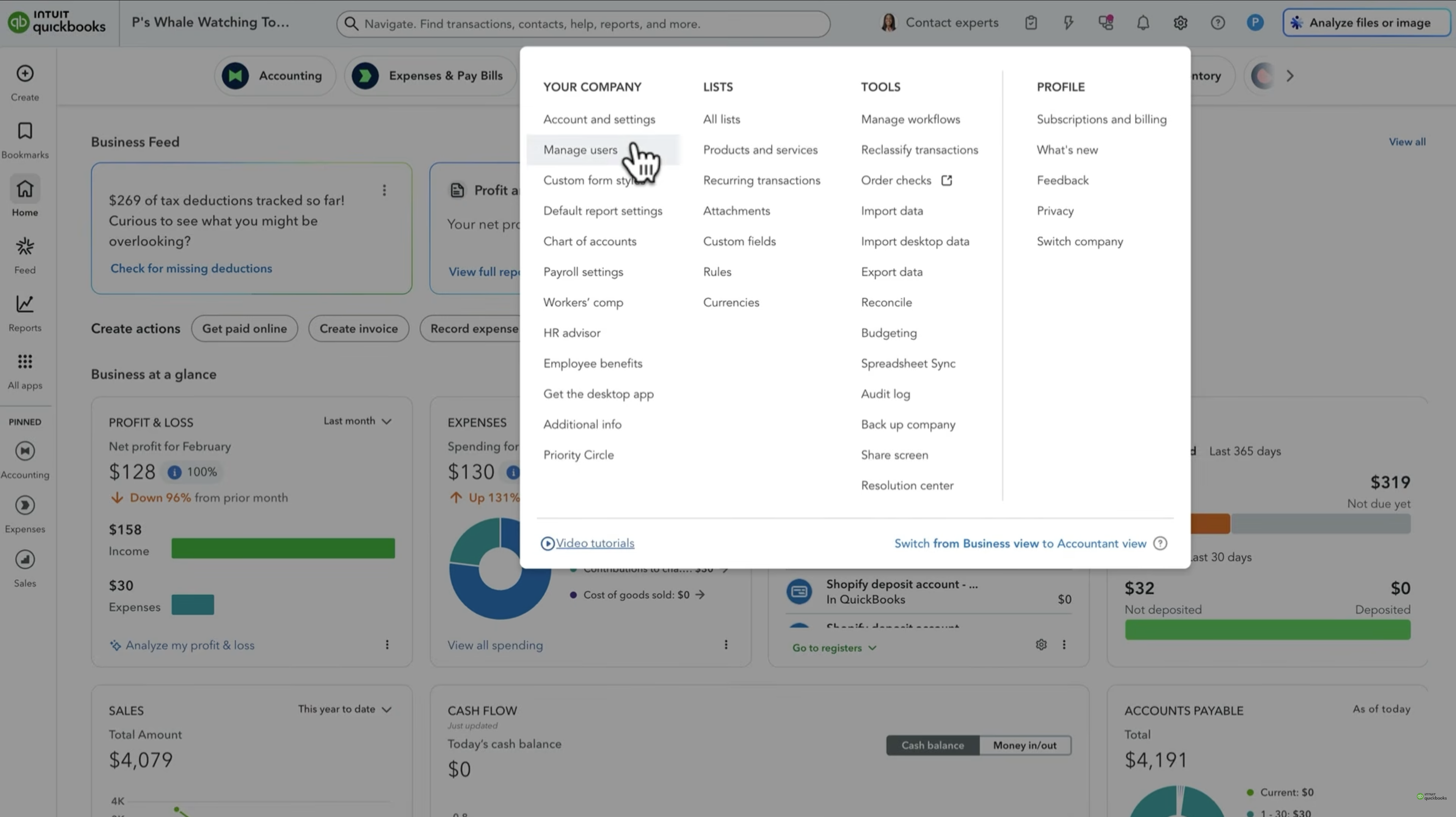
User management lives behind the gear icon: Settings ⚙ → Your Company → Manage users.
Company admin
The admin sees and does everything: all transactions, all reports, all settings, plus user management and subscription billing. There is one primary admin per company, and others can be granted admin rights. This is also the only user type that can connect third-party apps.
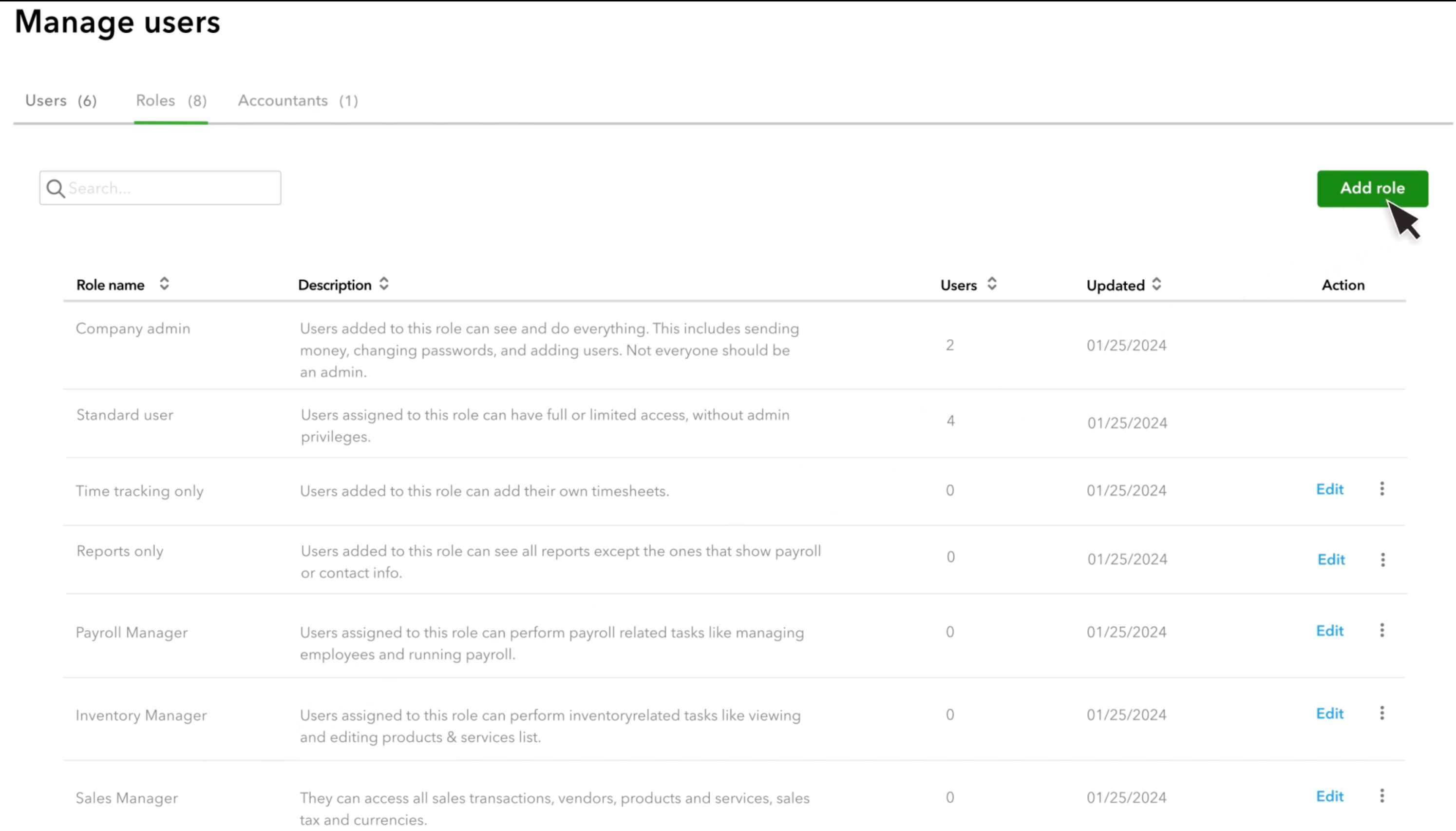
The Roles tab lists every role in the company, how many users hold it, and, for the non-built-in roles, an Edit link.
Standard user
This is the type most people mean when they talk about QuickBooks user permissions. When you add a standard user, you choose their access level:
- All access, everything except administrative functions like user management and billing.
- Limited to customers and sales, invoices, sales receipts, estimates, customer records, and their reports.
- Limited to vendors and purchases, bills, expenses, purchase orders, vendor records, and their reports.
- None, no transaction access, used when someone should only manage users or the subscription.
The important detail: limited access is scoped by area, not by read versus write. A standard user limited to customers and sales can look up an invoice, and can also create, edit, and delete one. The boundary QuickBooks draws is “which part of the business,” not “look but don’t touch.”
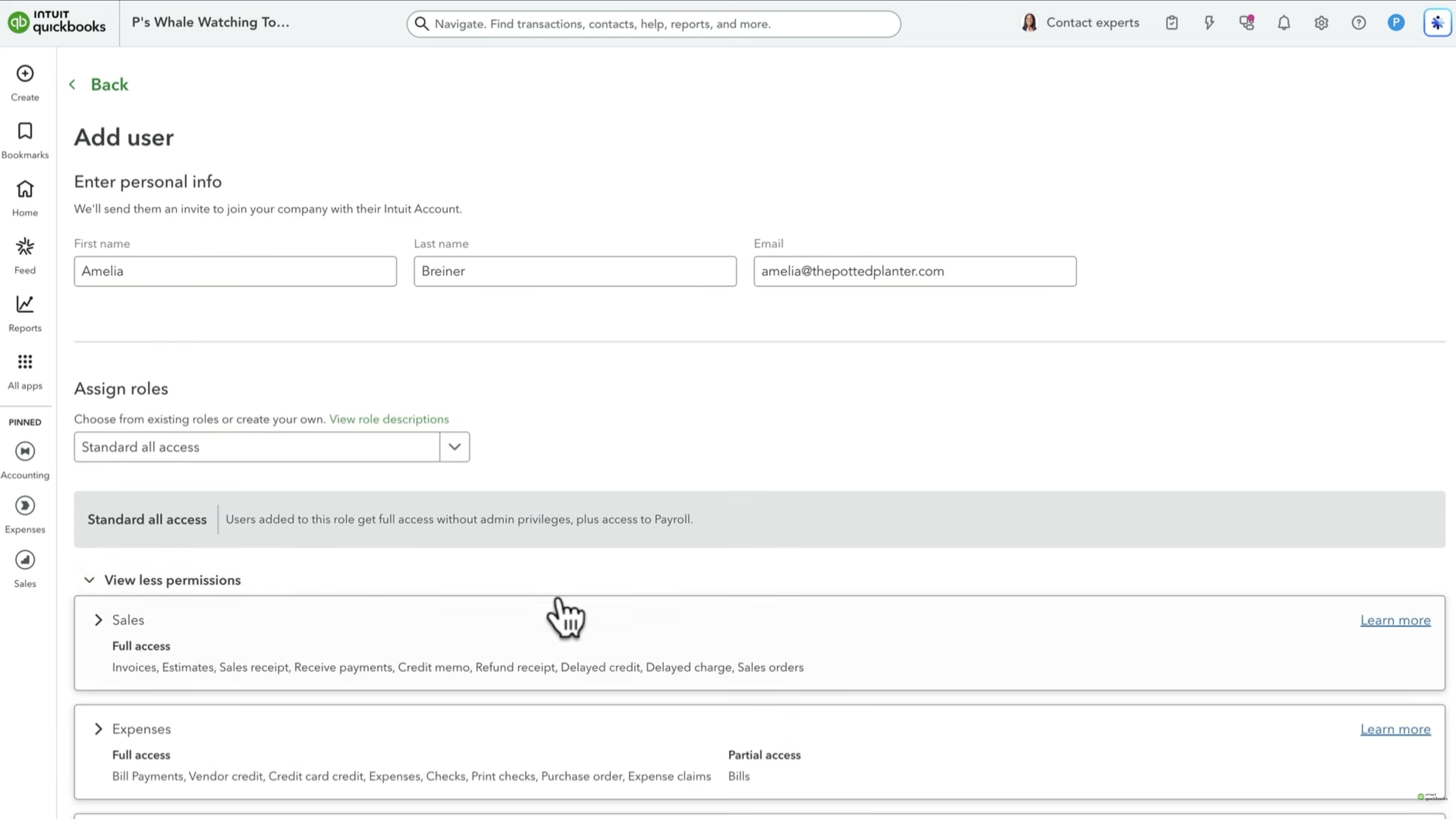
The permission summary shown when you assign a role makes this concrete: Sales reads “Full access, Invoices, Estimates, Sales receipt, Receive payments, Credit memo…”, with no view-only column to choose instead.
Reports-only user
Available on QuickBooks Online Plus and Advanced, this is the closest thing to a native view-only account. Reports-only users can run most reports but cannot open and edit transactions, and cannot see payroll reports or employee and vendor contact details. They also do not count against your billable user limit.
It is genuinely useful, with one catch: reports are the only surface. Someone who just wants to check whether a single invoice has been paid has to run a report and read it, which is a different experience from looking up a record.
There is also a time-tracking-only user (own timesheets, nothing else, also free), and two free accountant seats, but accountant access is broad, so it is not a way to hand out limited visibility.
Custom roles on QuickBooks Online Advanced
QuickBooks Online Advanced adds custom user roles, and this is where genuine granular permissions live. You can build a role, set the access level per area (including view-only for areas like sales, expenses, inventory, and reports) and assign it to specific users.
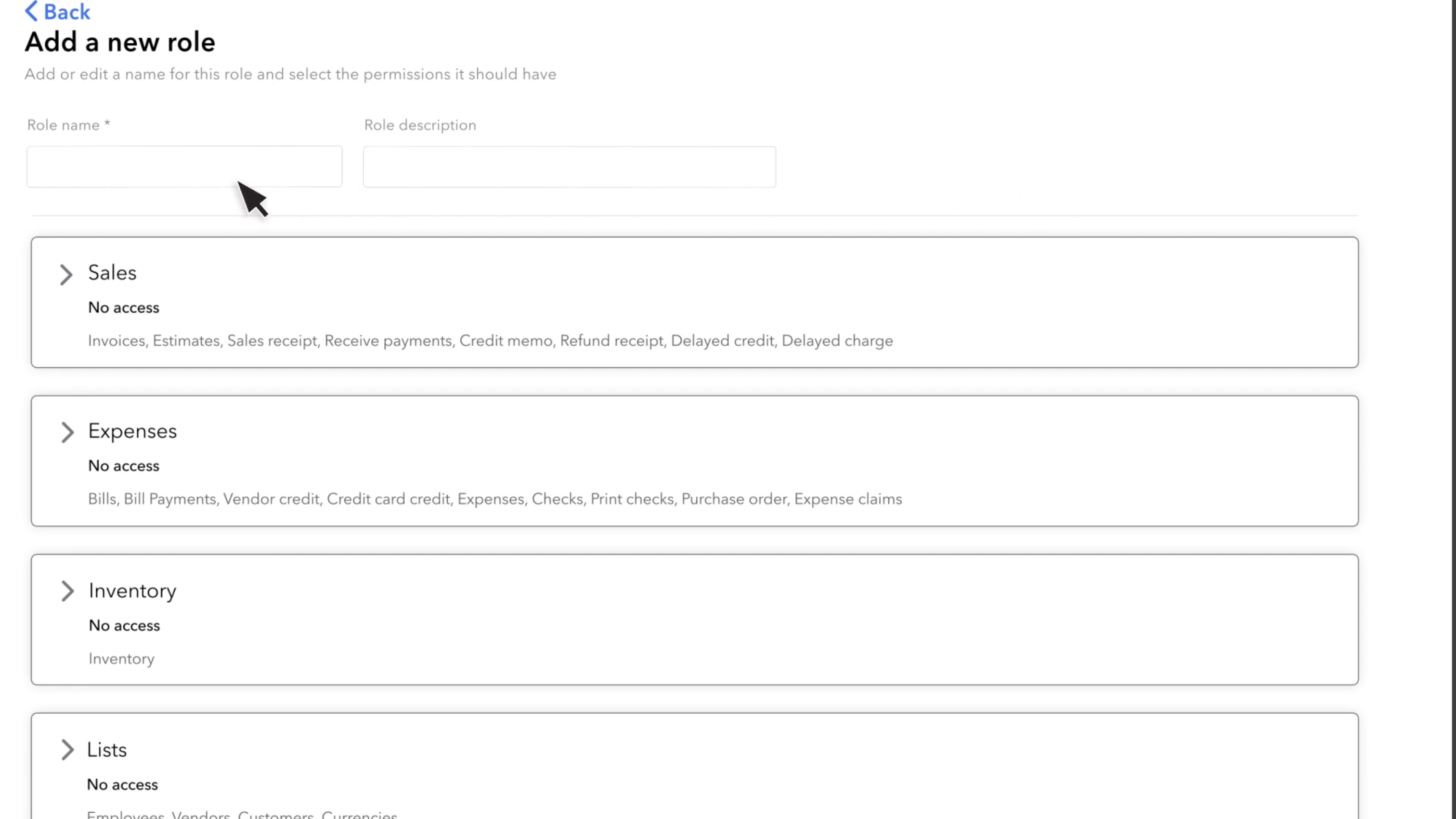
A new role starts with every module set to No access, and you open each one to grant only what that person needs. The full permission surface breaks down into Sales, Expenses, Inventory, Lists, Bookkeeping, Accounting, and Budgets, each expandable to per-object settings, so “view only” here is a specific choice inside a specific area, not a mode you switch on for the whole company. If you are on Advanced and the person needs to work inside QuickBooks itself, custom roles are often the whole answer. On Simple Start and Essentials they are not available, and your view-only options are whatever the standard user types provide.
One thing to watch while building a role: those categories are less independent than the builder makes them look. Permissions have prerequisites, and when something you have selected needs others to function, QuickBooks stops you and asks to widen the role beyond what you chose.
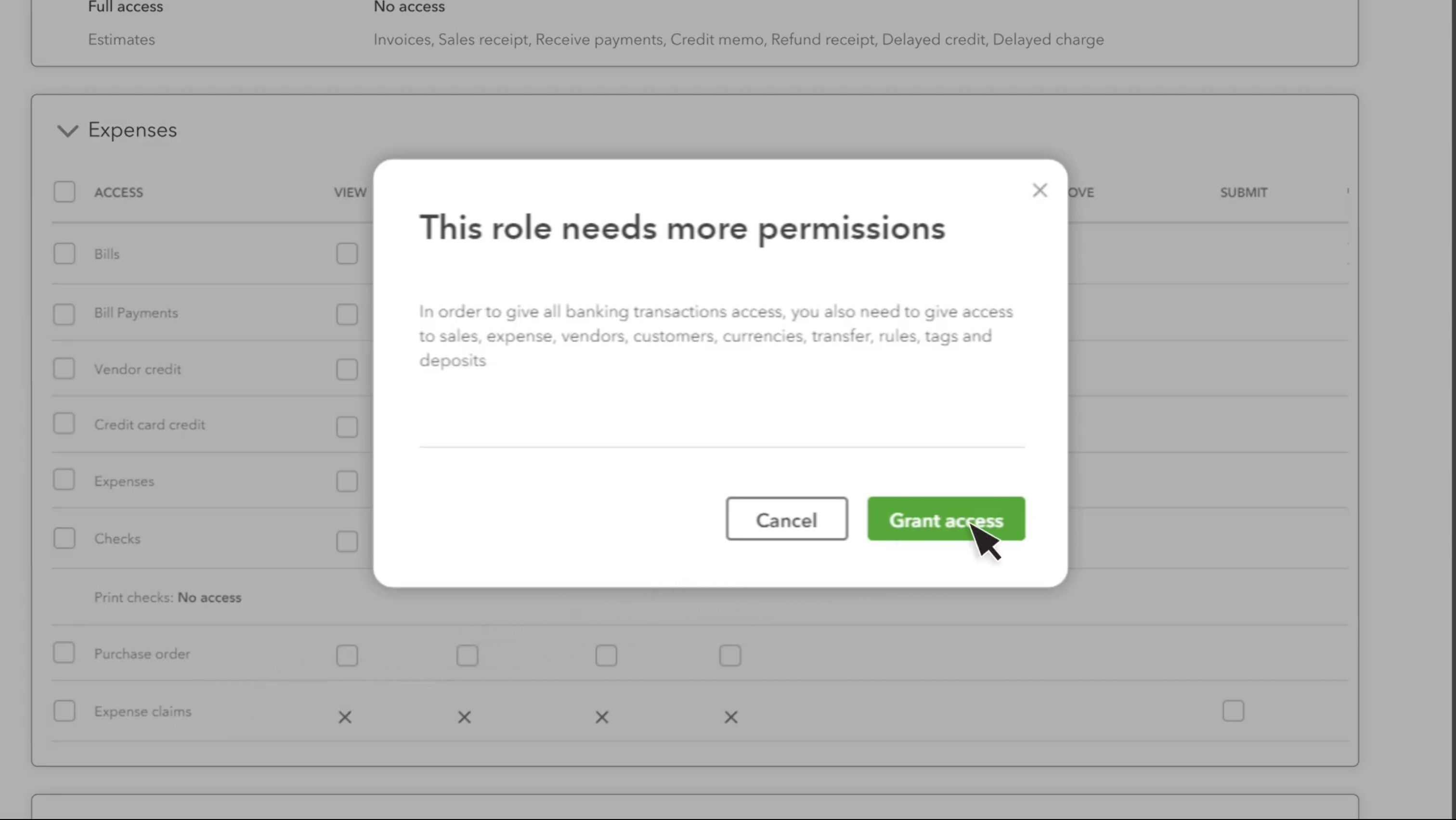
Granting banking transaction access, for example, pulls in sales, expenses, vendors, customers, currencies, transfers, rules, tags, and deposits along with it, so a role you intended to keep narrow can end up considerably broader.
Why the QuickBooks API has no read-only scope
What happens outside the QuickBooks interface works on completely different rules.
com.intuit.quickbooks.accounting is a single, broad scope
When an app connects to QuickBooks Online through OAuth 2.0, it requests scopes. For accounting data there is essentially one: com.intuit.quickbooks.accounting. It covers the Accounting API as a whole (customers, invoices, payments, vendors, bills, items, and the rest) for both reading and writing. There is a separate com.intuit.quickbooks.payment scope for the Payments API and the standard OpenID scopes for identity, but on the accounting side it is one scope or nothing.
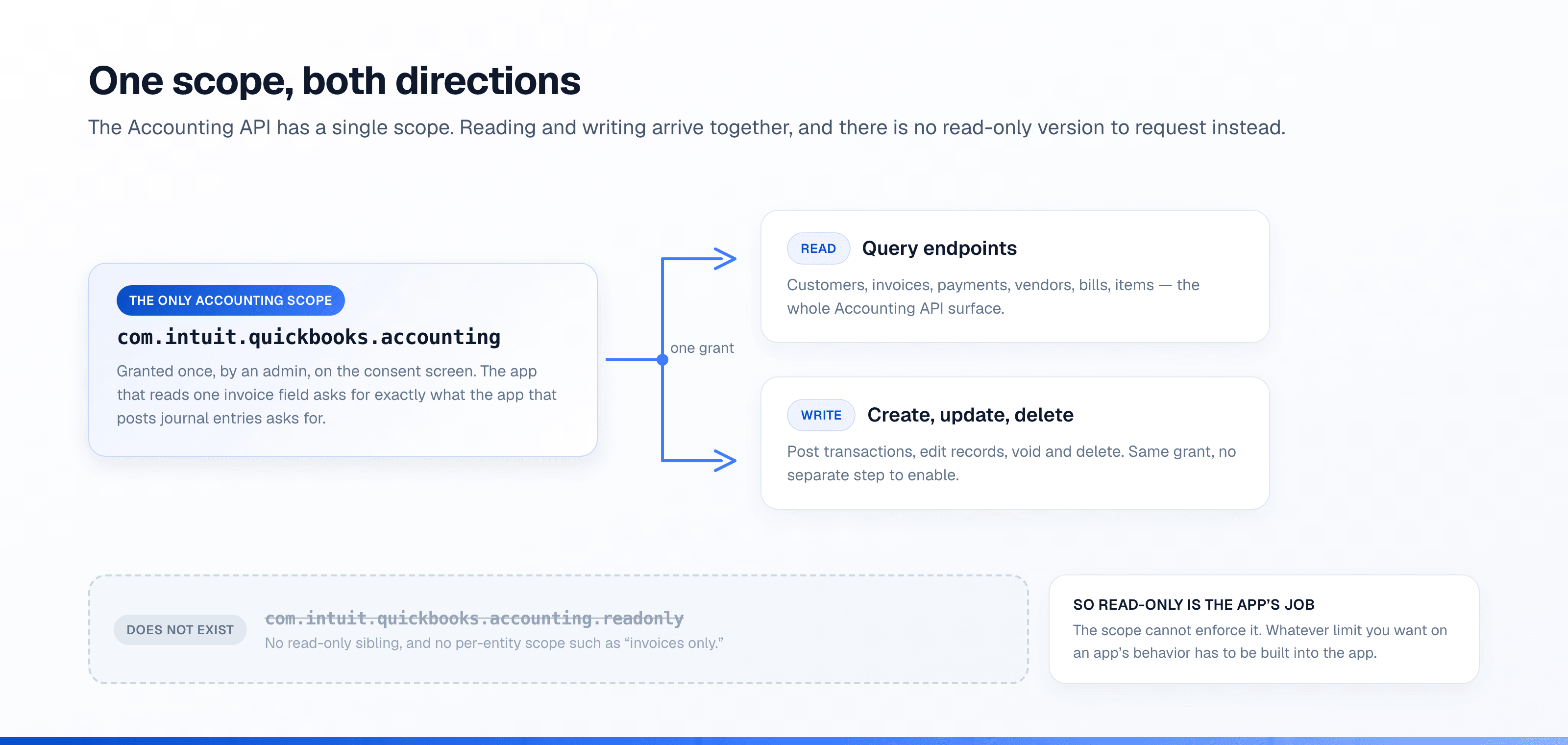
There is no ...accounting.readonly variant to request, and no way to ask for invoices only. An app that reads one invoice field requests exactly the same scope as an app that posts journal entries. That is a reasonable design choice for a platform serving thousands of different apps behind one consent screen, but it puts the responsibility somewhere specific: read-only behavior has to be enforced by the application, not by the scope.
App access is not filtered by user roles
QuickBooks Online user roles govern the QuickBooks interface. They are not a second layer of enforcement on an app’s API calls: a connection is authorized by an admin, and the app then operates within the scope it was granted. So “I’ll connect the app as a limited user” does not produce limited API access.
Put those two facts together and the conclusion is simple. True read-only access to QuickBooks data through the API comes from choosing a tool that only reads, or building a layer that only reads. The wider set of risks in connecting AI to accounting data covers what else to check before you grant that access.
Your options for granting limited access today
Here are the approaches people actually use, roughly in order of effort.
1. Use a reports-only user (Plus and Advanced). Free, no transaction editing, and good enough when the real need is a recurring number. Save the report for them so they are not building it themselves. (QuickBooks AI: what Intuit gives you, and what it doesn’t walks through where reports-only users still fall short.)
2. Use custom roles (Advanced). Build a role with view-only access to the areas the person needs. This is the only native path to granular view-only permissions.
3. Send the report instead of the access. QuickBooks Online can email saved reports on a schedule to any address, including people without a login. For “how are sales tracking this month,” that often ends the request permanently.
4. Export to a spreadsheet. Exporting to Excel or Google Sheets, or using Spreadsheet Sync on Advanced, shares exactly the columns you choose with exactly the people you choose. The trade-off is that it is a snapshot someone has to refresh.
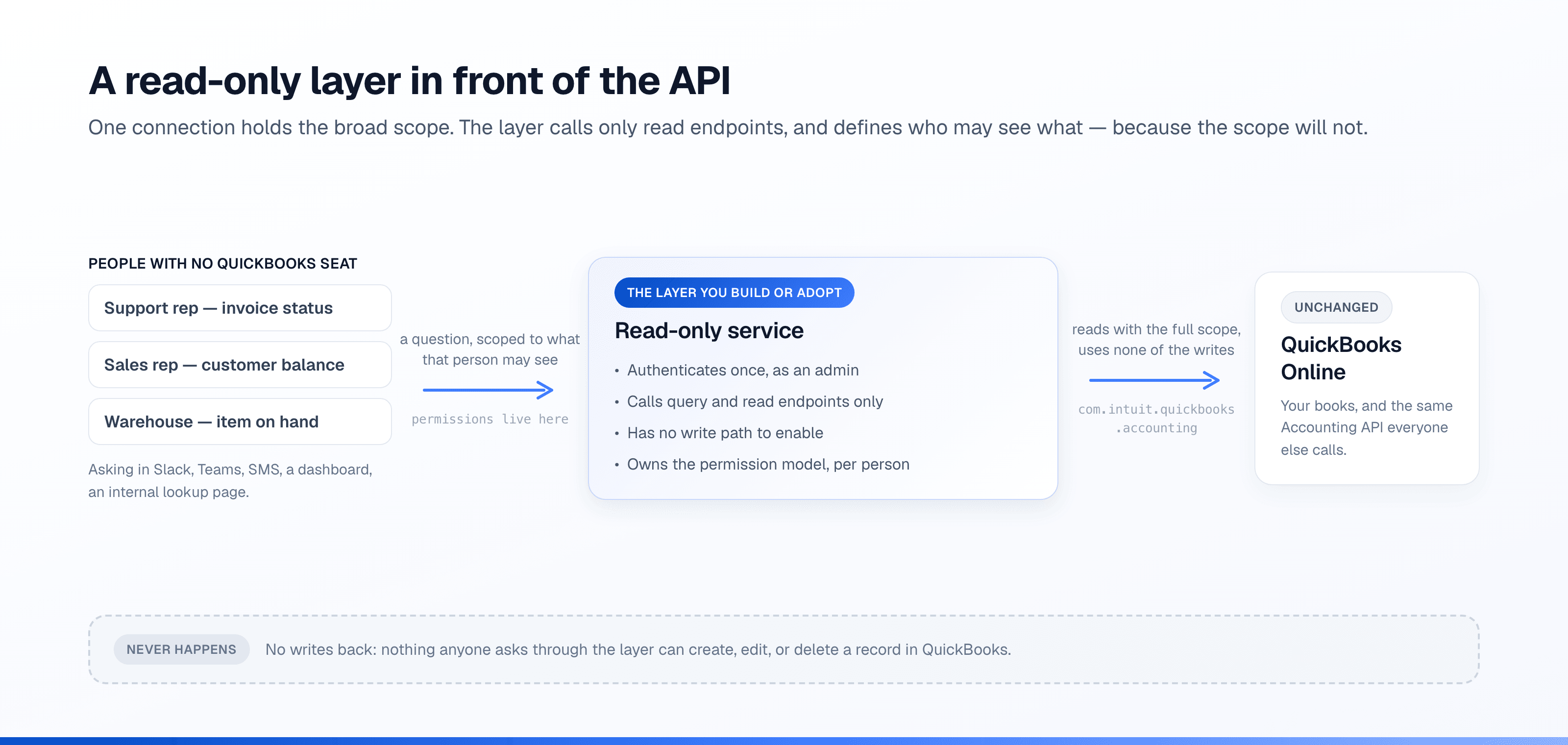
5. Put a read-only layer in front of the API. Build or adopt a service that authenticates once with com.intuit.quickbooks.accounting, calls only query and read endpoints, and exposes a narrow interface: a dashboard, an internal lookup page, a chat bot. This is the only approach that gives non-QuickBooks users live data at the granularity you define. The cost is that you own the permission model, because the scope will not enforce it for you.
6. Grant limited standard-user access and accept the write rights. Sometimes that is fine, especially for someone who needs to create invoices anyway. Just decide it knowingly rather than assuming “limited” means “view only,” and use the audit log to keep visibility on changes.
Where Kipper fits
Kipper is one implementation of option five, built so the people who need answers do not need QuickBooks logins. An admin connects QuickBooks Online once, and Kipper reads invoices, customers, payments, bills, vendors, purchase orders, inventory, and related records with no write path to enable, so nothing it does can change your books. Access is then controlled per person inside Kipper rather than in QuickBooks (a support rep can be allowed to check invoice status and nothing else), and they can get answers by text message without a login at all, and people ask in Slack, in Microsoft Teams, by text message, or in a web chat instead of learning the QuickBooks interface. It is not a replacement for QuickBooks user permissions, and it does not do what QuickBooks reporting does; it covers the ad hoc factual lookups that otherwise land in a finance person’s inbox.
The short version
QuickBooks Online gives you real control over what area someone can reach, and on Advanced, over whether they can edit within it. What it does not give you is a universal read-only mode, and the API’s single com.intuit.quickbooks.accounting scope means the same is true for connected apps. Once you know that, the question stops being “how do I turn on view-only access” and becomes “who needs which data, and what is the smallest way to get it to them”, which usually does have a good answer.
If that answer for your team is read-only lookups for people without a QuickBooks seat, the QuickBooks connector is where it starts. One read-only connection, and it takes a few minutes to try. 30 Questions You Can Ask AI About Your QuickBooks Data shows the kind of lookup that covers, and our QuickBooks MCP guide walks through every way to connect.
FAQ
Is there a read-only user in QuickBooks Online?
Not as a general-purpose user type. QuickBooks Online Plus and Advanced include a reports-only user, which is close to view-only but limited to reports. QuickBooks Online Advanced adds custom user roles, where you can set view-only access for specific areas. On Simple Start and Essentials, there is no built-in view-only option.
What is com.intuit.quickbooks.accounting?
It’s the OAuth 2.0 scope that grants an app access to the QuickBooks Online Accounting API. It is a single, broad scope that covers reading and writing accounting data. Intuit does not publish a read-only variant or a per-entity version of it.
Can I give someone access to just invoices in QuickBooks Online?
A standard user can be limited to customers and sales, which narrows the data they see, but that access includes creating and editing sales transactions. Narrowing to a single object like invoice status, without edit rights, is not something the standard user types do on their own.
Do QuickBooks user permissions apply to connected apps?
No. User roles govern what a person can do in the QuickBooks Online interface. A connected app authenticates through OAuth and operates within the scopes it was granted, so whatever limits you want on an app’s behavior have to come from the app itself.
How do I give someone view-only access without a QuickBooks seat?
The common options are sharing exported or scheduled reports, or putting a read-only layer in front of the API that answers specific questions and never writes back. Which one fits depends on whether people need a document, a recurring report, or a quick one-off answer.