









How to Connect Xero MCP to Claude Desktop
Add the official Xero MCP server to Claude Desktop with a Xero Custom Connection, Client ID, Client Secret, and Demo Company test.
On this page +
See it live
Ask Kipper about your Xero data.
Invoices, supplier bills, purchase orders and credit notes.
Schedule free onboardingNo signup. Runs in your browser.
This guide covers one step: connecting the official Xero MCP server to Claude Desktop. If you would rather not run a local server, the Xero Claude connector is the hosted alternative.
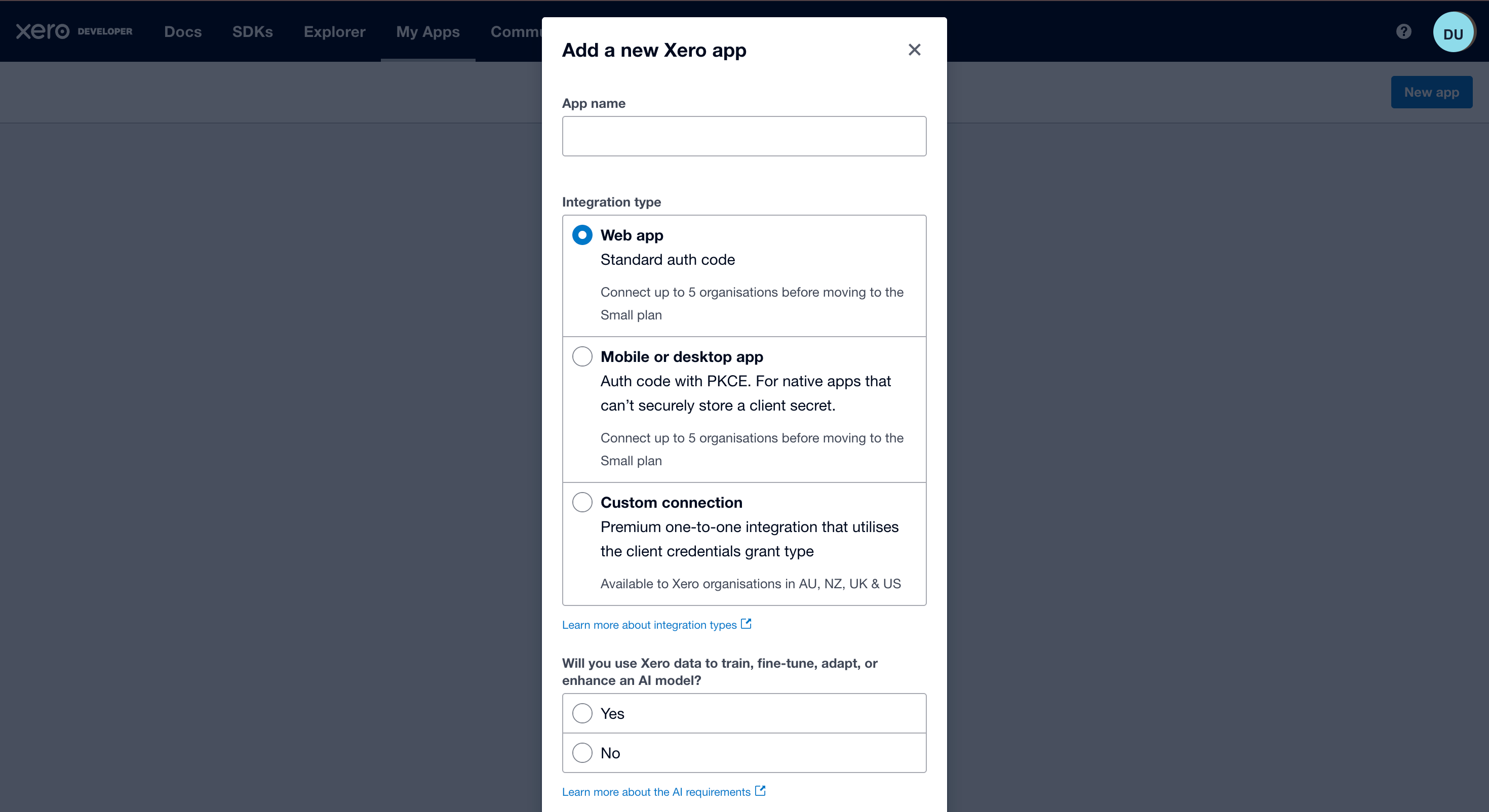
If you have not created and authorised a Xero Custom Connection yet, start with How to Set Up Xero MCP Server (Developer Guide). Come back once you have a Demo Company or eligible organisation connected, plus a Client ID, Client Secret, and the scopes you want Claude Desktop to use.
The first test here uses the Xero Demo Company and the read-only list-organisation-details tool. Using a different client? The same Custom Connection also works in Codex and ChatGPT.
What You Need
Finish the Xero-side setup before opening Claude Desktop:
- Claude Desktop
- Node.js and npm
- A Xero Custom Connection
- An authorised Xero Demo Company or eligible organisation
- A Xero Client ID and Client Secret
- The
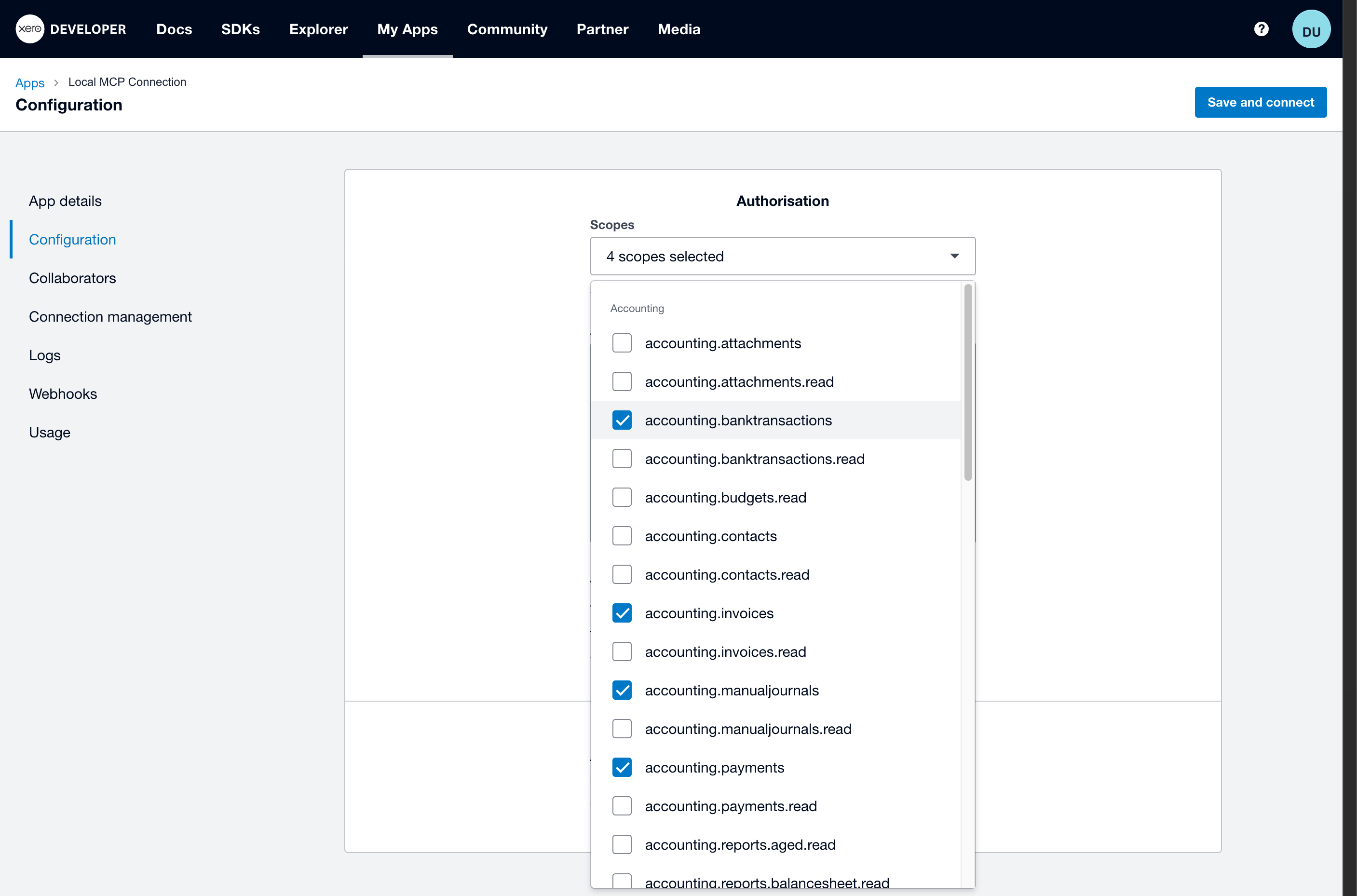
accounting.settings.readscope for the first test
Step 1: Open Claude Desktop Settings
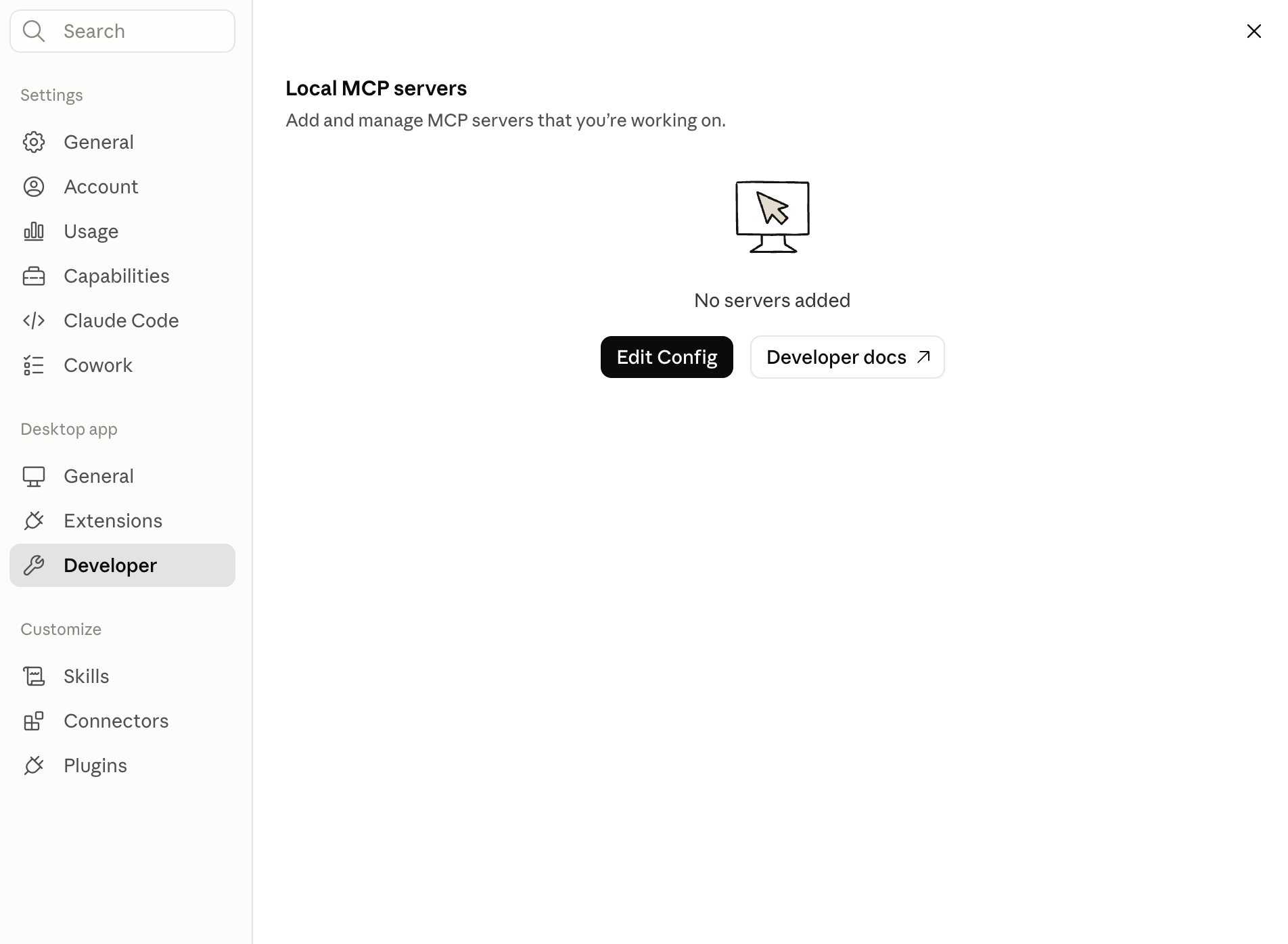
Claude Desktop reads local MCP servers from claude_desktop_config.json. Let the app open the file for you: Settings → Developer → Edit Config.
In the Developer settings screen, the local MCP server panel shows the Edit Config button.
If you need to find the file directly:
- macOS:
~/Library/Application Support/Claude/claude_desktop_config.json - Windows:
%APPDATA%\Claude\claude_desktop_config.json
Success check: claude_desktop_config.json opens in your editor.
Step 2: Add the Xero MCP Server
Add the xero server inside the top-level mcpServers object.
{
  "mcpServers": {
    "xero": {
      "command": "npx",
      "args": ["-y", "@xeroapi/xero-mcp-server@latest"],
      "env": {
        "XERO_CLIENT_ID": "YOUR_XERO_CLIENT_ID",
        "XERO_CLIENT_SECRET": "YOUR_XERO_CLIENT_SECRET",
        "XERO_SCOPES": "accounting.settings.read"
      }
    }
  }
}
YOUR_XERO_CLIENT_ID and YOUR_XERO_CLIENT_SECRET are placeholders. Replace them with the values from your authorised Xero Custom Connection.
Keep any existing MCP servers in the file. If the file already has an mcpServers object, merge xero into it instead of adding a second mcpServers key.
XERO_SCOPES must match the scopes authorised in Xero Developer. Start with accounting.settings.read for the read-only Demo Company test.
Success check: The JSON is valid and contains one xero entry under mcpServers.
Step 3: Restart Claude Desktop
Save the file, then fully quit Claude Desktop and reopen it. Closing the window is not enough; Claude needs a full restart to load the local MCP server.
Success check: Claude Desktop reopens without a configuration error.
Step 4: Confirm the Xero Tools Are Available
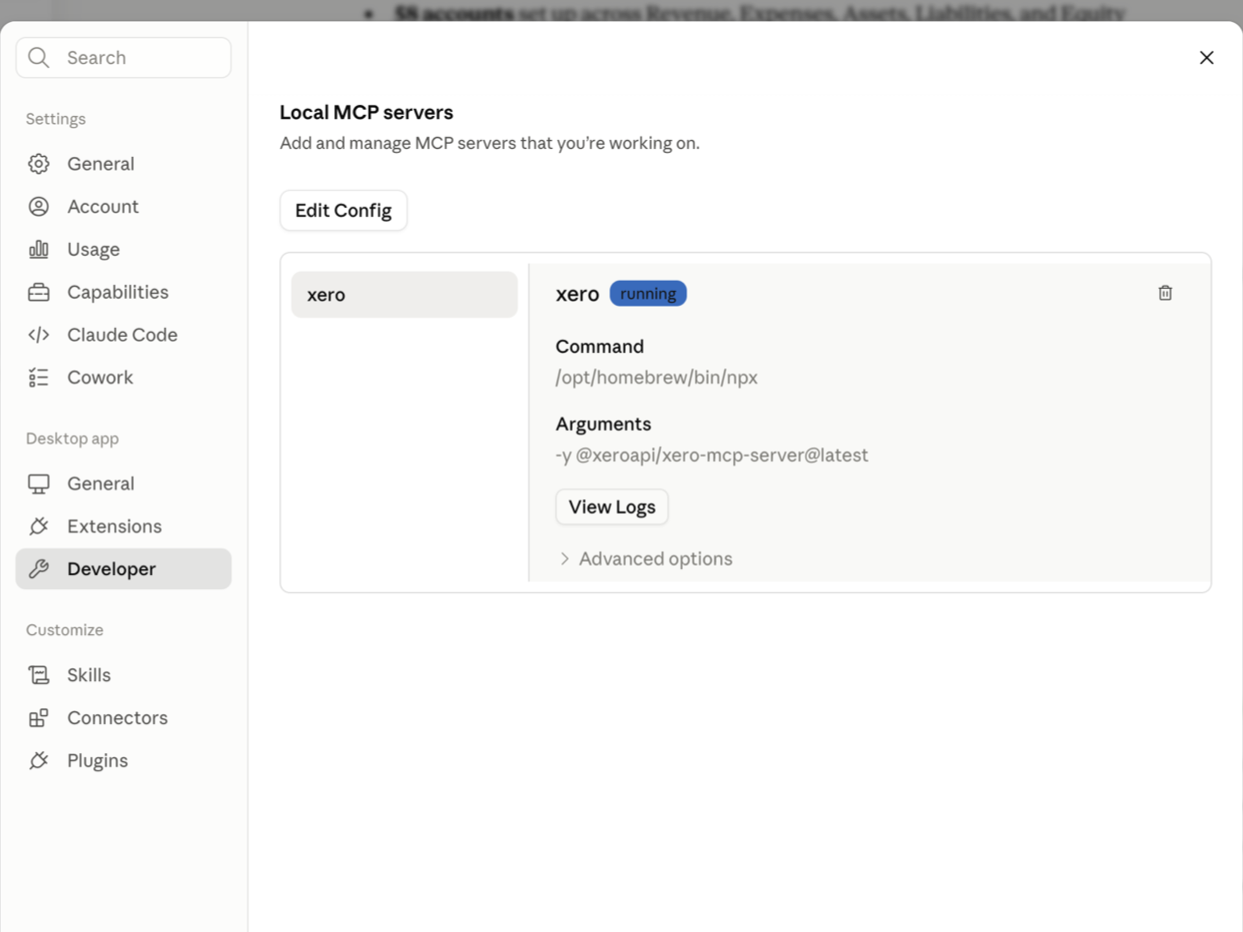
After restart, return to Settings → Developer. Claude should show the xero local MCP server as running.
Then open a new chat and check the tools or connectors menu. Look for Xero tools such as:
list-organisation-details
list-accounts
list-contacts
list-invoices
Success check: Claude Desktop shows Xero tools from the xero MCP server.
Step 5: Test the Xero Connection
Ask Claude to call one read-only tool first:
Use the Xero MCP server and call only the read-only
list-organisation-details tool.

Return the organisation name, country, and base currency.
Do not create or update any Xero records.
A successful response should include the authorised organisation:
Organisation name: Demo Company (Global)
Country: <Demo Company country>
Base currency: <Demo Company currency>
Success check: Claude returns the expected Demo Company or authorised Xero organisation.
Example Xero MCP Prompts for Claude
The first organisation-details test above is the safest connection check. After it works, ask Claude for read-only data using prompts like these.
Count all invoices
This requires accounting.invoices.read to be authorised in Xero Developer and included in XERO_SCOPES.
Use only the Xero MCP server.

Call the read-only list-invoices tool.

Retrieve every available page of invoices and report:

- total invoice count
- counts by status
- sales invoices versus bills where available
- total amount invoiced
- total amount paid
- total amount outstanding

Do not create or modify any Xero records.
Find open and overdue invoices
Use this after invoice read access is working.
Use only the Xero MCP server.

Call the available read-only invoice tools.

Find all open and overdue invoices.

Report:

- invoice number
- contact
- invoice date
- due date
- status
- currency
- total
- amount paid
- amount due

Sort overdue invoices from oldest to newest.
Do not create or modify any records.
List accounts
Make sure the matching read scope is authorised in Xero Developer and included in XERO_SCOPES.
Use only the Xero MCP server.

Call the read-only list-accounts tool.

Group the accounts by account type and report:

- account name
- account code
- account type
- status
- tax type where available

Do not create or update any accounts.
List contacts
The contact details returned depend on the authorised scopes and the connected organisation’s data.
Use only the Xero MCP server.

Call the read-only list-contacts tool.

Report:

- total contact count
- customers and suppliers where identifiable
- contact name
- email address where available
- account number where available
- contact status

Show the 20 most recently updated contacts if update dates are available.
Do not create or update any contacts.
Retrieve a financial report
The official Xero MCP server exposes list-profit-and-loss for profit and loss reporting. Make sure the matching read scope is authorised in Xero Developer and included in XERO_SCOPES.
Use only the Xero MCP server.

Call the read-only list-profit-and-loss tool.

Return the profit and loss report for the current financial year.

Summarise:

- total income
- cost of sales
- gross profit
- operating expenses
- net profit

State the report date range and currency.
Do not create or modify any Xero records.
Retrieve as much read-only data as possible
The result depends on the scopes authorised for the Custom Connection.
Use only the Xero MCP server.

First call list-organisation-details and confirm the connected organisation.

Then inspect the available Xero MCP tools and run every authorised read-only listing or reporting tool.

Retrieve all available pages.

For each data type, report:

- total records retrieved
- counts by status or type
- useful financial totals
- date range covered
- the most recent records
- overdue or incomplete records
- the MCP tool used
- any scope, permission, pagination, or API limitation

Do not create, update, approve, pay, or delete any Xero records.
Diagnose a failed setup
Use this prompt to collect useful failure details without running write-capable tools.
Use only the Xero MCP server.

First check whether list-organisation-details is available.

If it fails, return:

- the MCP tool name
- the exact error message
- whether the failure appears related to authentication, scopes, tool discovery, or the connected organisation

Do not retry write-capable tools.
Do not create or update any records.
What are the common Claude Desktop errors?
| Problem | What to check |
|---|---|
| Claude does not show the Xero tools | Fully quit and reopen Claude Desktop, then confirm xero is inside the existing mcpServers object. |
Claude cannot find npx |
Run which npx on macOS or Linux, then use that absolute path as the command value. |
| The Claude configuration contains invalid JSON | Check commas, braces, quotes, and duplicate mcpServers keys. |
invalid_client |
Copy the current Client ID and Client Secret from the correct Xero Custom Connection. Rotate the secret first if it was exposed. |
invalid_scope |
Confirm XERO_SCOPES matches the scopes authorised in Xero Developer. Separate multiple scopes with spaces. |
| The wrong Xero organisation is returned | Confirm the Custom Connection was authorised for the intended Demo Company or organisation. |
For an error that outlasts this table, Xero MCP troubleshooting works through the same failures in more depth.
Xero MCP With Claude Desktop FAQ
Does Xero MCP work with Claude Desktop?
Yes. Claude Desktop can start the official Xero MCP server locally with npx and use the tools exposed by that server.
Can I test Xero MCP with the Demo Company?
Yes. Use the Demo Company for the first test because it contains fictional accounting data.
Where do I enter the Xero Client ID and Client Secret?
Put them in the env block for the xero MCP server in claude_desktop_config.json.
Can I connect a real Xero organisation?
Yes. Test with the Demo Company first. A real organisation may require suitable permissions, careful scope review, and Custom Connection entitlement.
Is there a managed Xero MCP option for teams?
The local Claude Desktop setup works well for one technical user.
For a team, every computer needs its own config, credentials, updates, and troubleshooting. A hosted connection can be easier to manage when several people need access.
Kipper is one managed option for teams that want a centrally managed Xero MCP connection with controlled access and audit logging. What it can see in Xero is a fixed record layer rather than the official server’s full tool surface, and 30 Questions You Can Ask AI About Your Xero Data is a good way to judge whether that covers what your team asks.
Learn more about a hosted Xero MCP connector for finance teams, or, if Claude is the only client your team needs, the Xero Claude connector.